Appointment and order messages are the texts customers actually need. A reminder that goes unread becomes a no-show. A shipping update that never arrives becomes a support ticket. For customers on iPhone, sending these updates as iMessage puts them in a blue bubble, in the thread where people already chat.
This guide shows how to automate appointment and order messages over iMessage. It covers which messages to automate, how the workflow runs, templates you can copy, and the limits to plan for. If you are new to the channel, start with what iMessage for business is.
Which appointment and order messages should you automate?
Automate any message that is triggered by an event and follows the same pattern every time. For most service businesses and stores, that means:
- Booking confirmations: date, time, location and who the customer will see.
- Reminders: one the day before and one on the day.
- Reschedules and cancellations: let the customer reply instead of calling.
- Order confirmations: what was ordered and when it should arrive.
- Shipping and delivery updates: tracking link, out-for-delivery and delivered.
- Delay notices: tell the customer before they have to ask.
- Payment reminders: upcoming renewals and failed payments, with a link to update details.
- Review requests: a short thank-you after the visit or delivery.
iMessage only reaches Apple users. Keep an SMS or WhatsApp version of each message for customers on Android.
How does an automated iMessage workflow work?
Every workflow follows the same five steps. Only the trigger changes.
- An event fires. A booking is created in your GoHighLevel calendar, an order is placed in your store, or your own system calls the API.
- The template is filled in. Fields such as first name, date, time and tracking link come from your CRM or the event.
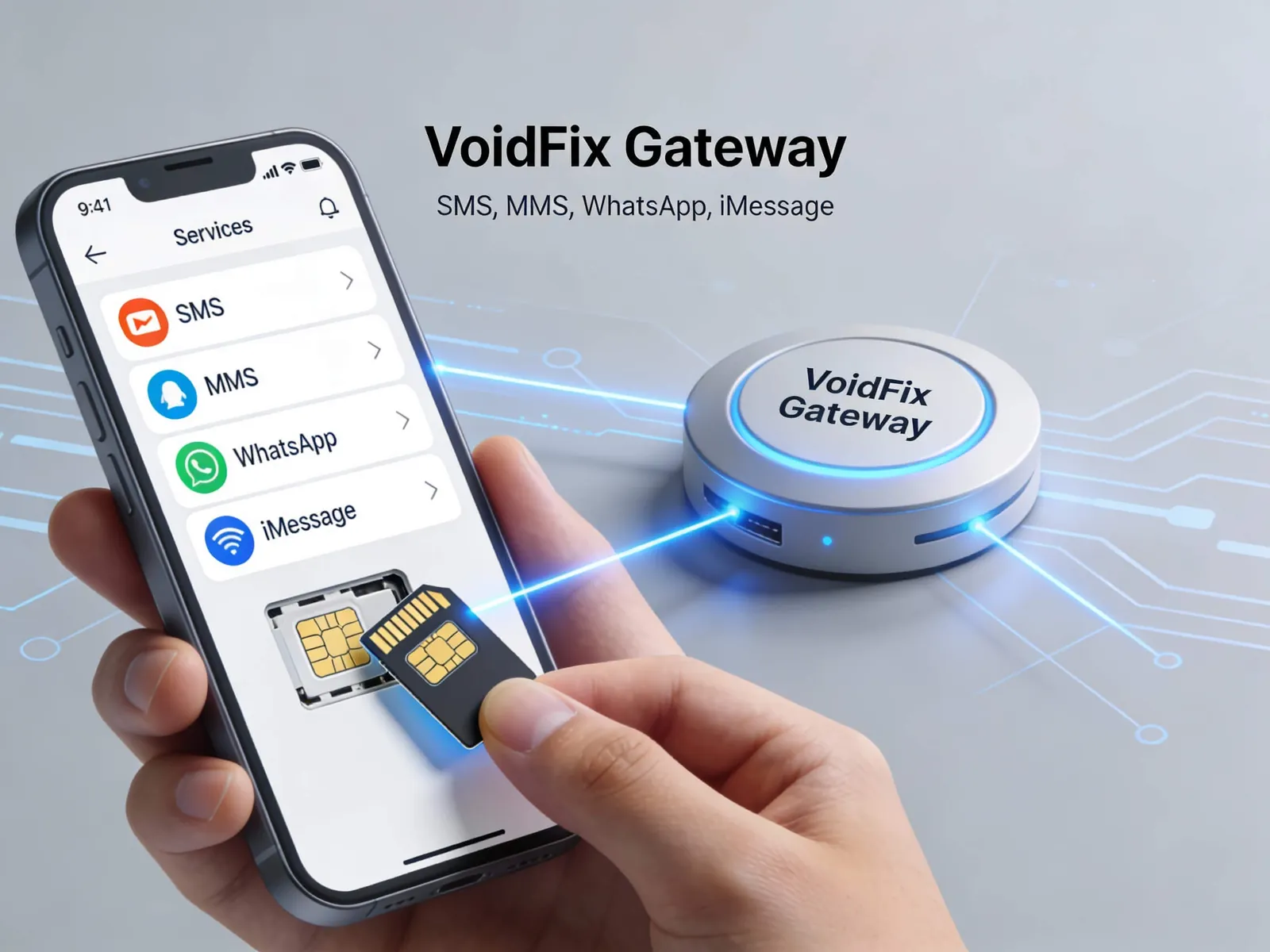
- The message goes out from your iMessage line. VoidFix sends it from a real iPhone with its own number, so it lands as a blue bubble.
- Replies come back. Customer replies arrive in your VoidFix dashboard or in GoHighLevel Conversations in real time.
- The workflow branches. A confirmation closes the loop. A reschedule request goes to your booking flow. Anything else goes to a person.
Appointment message templates you can copy
Keep each message short and give the customer one clear action. Replace the fields in curly brackets with your own CRM fields.
- Booking confirmation: "Hi {first_name}, you're booked with {business} on {date} at {time}. Reply C to confirm or R to reschedule."
- Day-before reminder: "Reminder: your appointment is tomorrow at {time} at {address}. Reply R if you need a new time."
- Same-day reminder: "See you at {time} today. Parking is at the back of the building. Running late? Just reply here."
- Reschedule reply: "No problem. We have {slot_1} or {slot_2} open. Reply 1 or 2 and we'll move you."
- After the visit: "Thanks for coming in today, {first_name}. Could you leave us a quick review? {review_link}"
A simple reminder schedule
Most appointment businesses do well with four touches. Send a confirmation right after booking. Send a reminder about 48 hours before, with any preparation notes. Send a short same-day reminder a couple of hours before, with directions. Finish with a follow-up after the visit to ask for a review or book the next one.
Test the timing against your own no-show data. A dental clinic and a car detailer will not need the same schedule.
Order and delivery message templates
- Order confirmation: "Thanks, {first_name}. Order #{order_id} is confirmed. We'll text you when it ships."
- Shipped: "Good news: order #{order_id} is on its way. Track it here: {tracking_link}"
- Out for delivery: "Your order arrives today. Need it left somewhere safe? Reply with instructions."
- Delay notice: "Sorry, order #{order_id} is running late. New estimate: {new_date}. Reply if you have questions."
- Delivered: "Your order was delivered. If anything is wrong, reply here and we'll sort it out."
Because iMessage carries full-quality photos, you can attach a product image to the confirmation. For store-specific ideas, read iMessage for e-commerce stores.
How do you handle replies and reschedules?
Two-way replies are where iMessage earns its place. A customer who needs a new time can answer the reminder in a few words. They do not have to call during office hours.
Set up three paths. Short keyword replies such as C or R trigger automatic next steps. Free-text replies go to a team inbox, so a person answers. Anything urgent, such as a complaint about a delivery, is tagged for follow-up the same day.
If a customer has read receipts turned on, you can see when a reminder was read. That helps your front desk decide who to call before the appointment.
How do you set it up in GoHighLevel, Zapier or the API?
- GoHighLevel: send iMessages from GHL workflows and receive replies in GHL Conversations. Our team configures the integration when we set up your line.
- Zapier, Zoho, N8N and HubSpot: use a booking or order event as the trigger and send the iMessage as the action.
- REST API: your system posts the number, message and line to the send endpoint. See the iMessage API documentation and our iMessage API integration guide.
What limits should you plan for?
- 50 unique contacts per day per line. A practice with 30 appointments a day fits on one line. If you message more than 50 different people a day, add a line.
- Apple users only. Send the same update by SMS or WhatsApp to everyone else.
- Consent and opt-out. Only text customers who gave you their number for these updates, and stop when they ask.
- Sensible hours. Schedule reminders for daytime, in the customer's time zone.
For more on keeping a line healthy, read the iMessage deliverability guide.
Common questions
What happens to customers who don't use an iPhone?
iMessage cannot reach Android phones. Build an SMS or WhatsApp branch in the same workflow for those contacts. VoidFix offers both channels from the same account.
Can I connect iMessage to my booking or store platform?
Yes, if the platform can trigger GoHighLevel, Zapier, Zoho, N8N, HubSpot or a webhook to the API. Our team helps connect your first workflow during setup.
Is iMessage suitable for payment reminders?
Apple encrypts iMessage end-to-end, so the content can't be read in transit. Even so, keep card details and passwords out of any text. Send a link to your secure payment page instead.
Get your first workflow live
A Bring Your Own iPhone line costs $99 per month with no setup fee. Fully Managed costs $149 per month plus a one-time $149 setup, and we supply the iPhone. Compare both on the iMessage pricing page, or see how the VoidFix iMessage gateway works. When you are ready, book an iMessage setup call and we will connect your line and your first reminder workflow.