

Watch the GoHighLevel iMessage setup walkthrough
Click through the interactive walkthrough below to see every screen of the connection, from the VoidFix iMessage portal to your first test message in GHL Conversations.
Open the full walkthrough in Scribe if you’d rather follow it in a separate tab.
Before you start
Prerequisites: You need an active VoidFix iMessage plan with at least one iMessage line set up and showing as working in the VoidFix iMessage portal. Plans are $99/month per line with your own iPhone, or $149/month per line plus a one-time $149 setup fee for Fully Managed. You also need agency owner or admin access in GoHighLevel, because GHL only shows telephony providers to agency admins and owners.
Part 1: Connect your sub-account in VoidFix iMessage
-
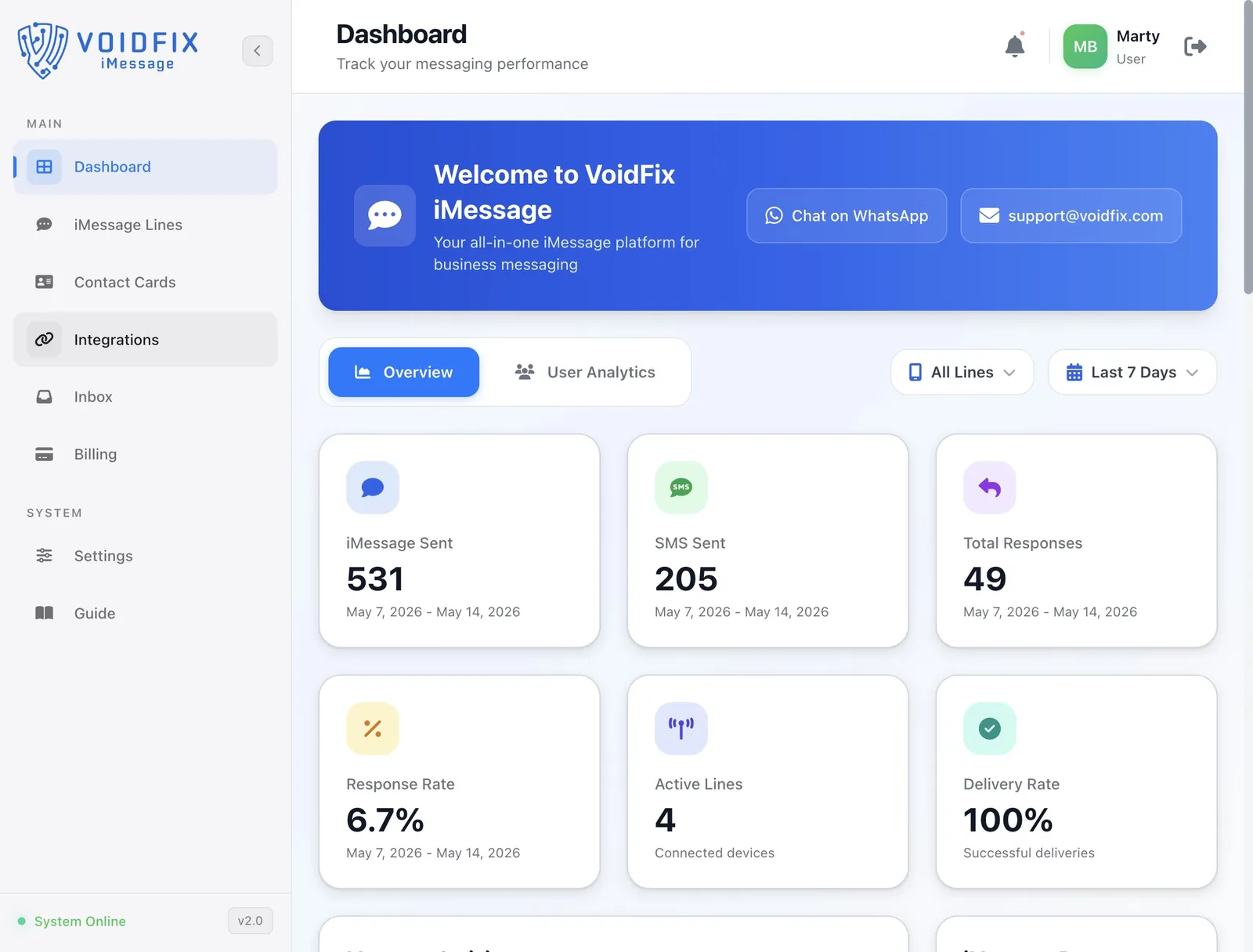
Open Integrations in the VoidFix iMessage portal
- Sign in at https://imessage.voidfix.com/integrations.
- If you land on the dashboard, click Integrations in the left menu.
-
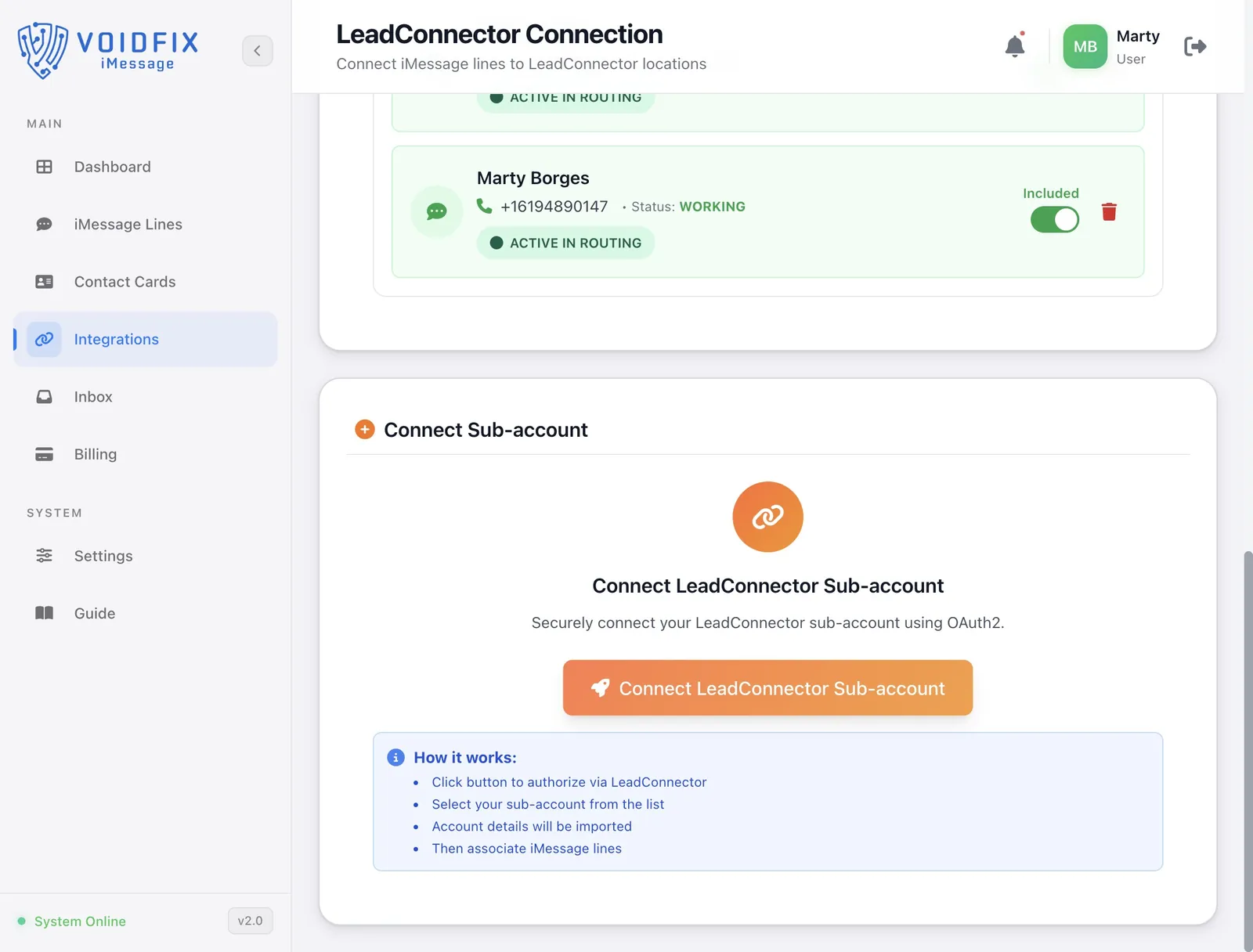
Click Connect LeadConnector Sub-account
The LeadConnector Connection page lists your connected sub-accounts and iMessage lines. Scroll to Connect Sub-account and click Connect LeadConnector Sub-account. LeadConnector is the platform behind GoHighLevel, so this connects your GHL sub-account securely with OAuth.
-
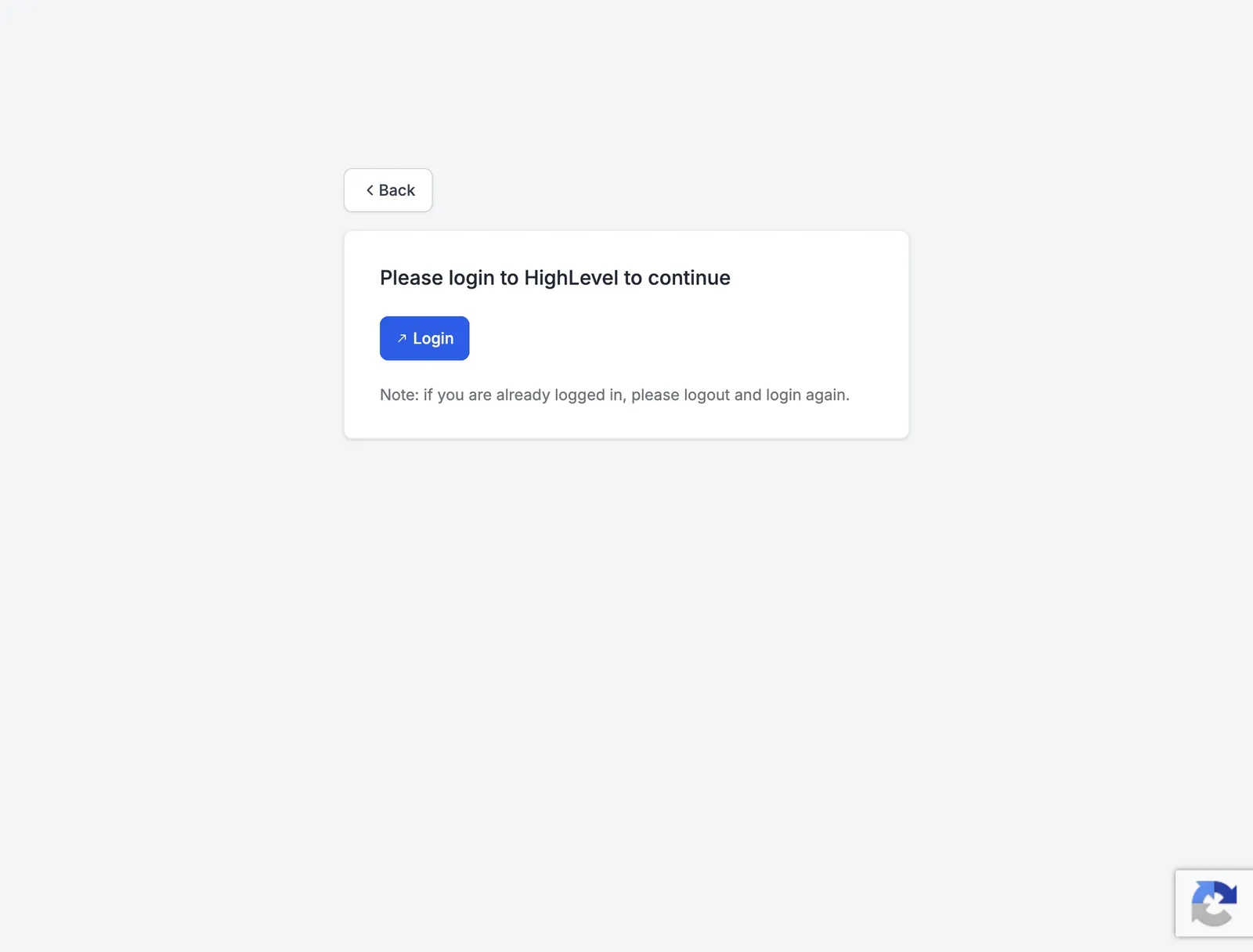
Log in to HighLevel
A HighLevel window opens. Click Login and sign in with your GoHighLevel account. If you’re already logged in and the next screen doesn’t load, log out of HighLevel and log in again.
-
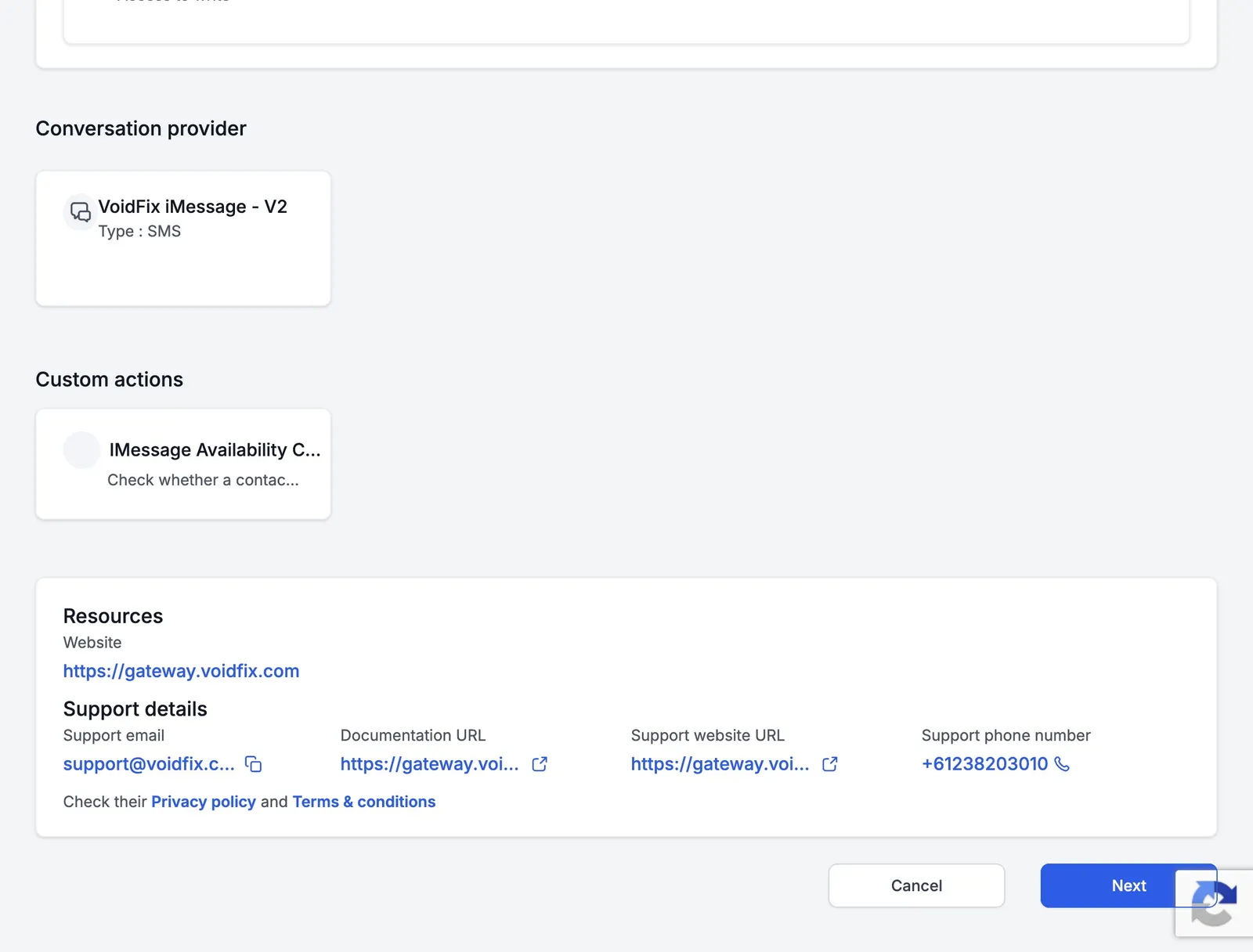
Review the app access and click Next
HighLevel shows what the VoidFix iMessage app can access, the VoidFix iMessage - V2 conversation provider and the iMessage availability check it adds. Scroll down and click Next.
-
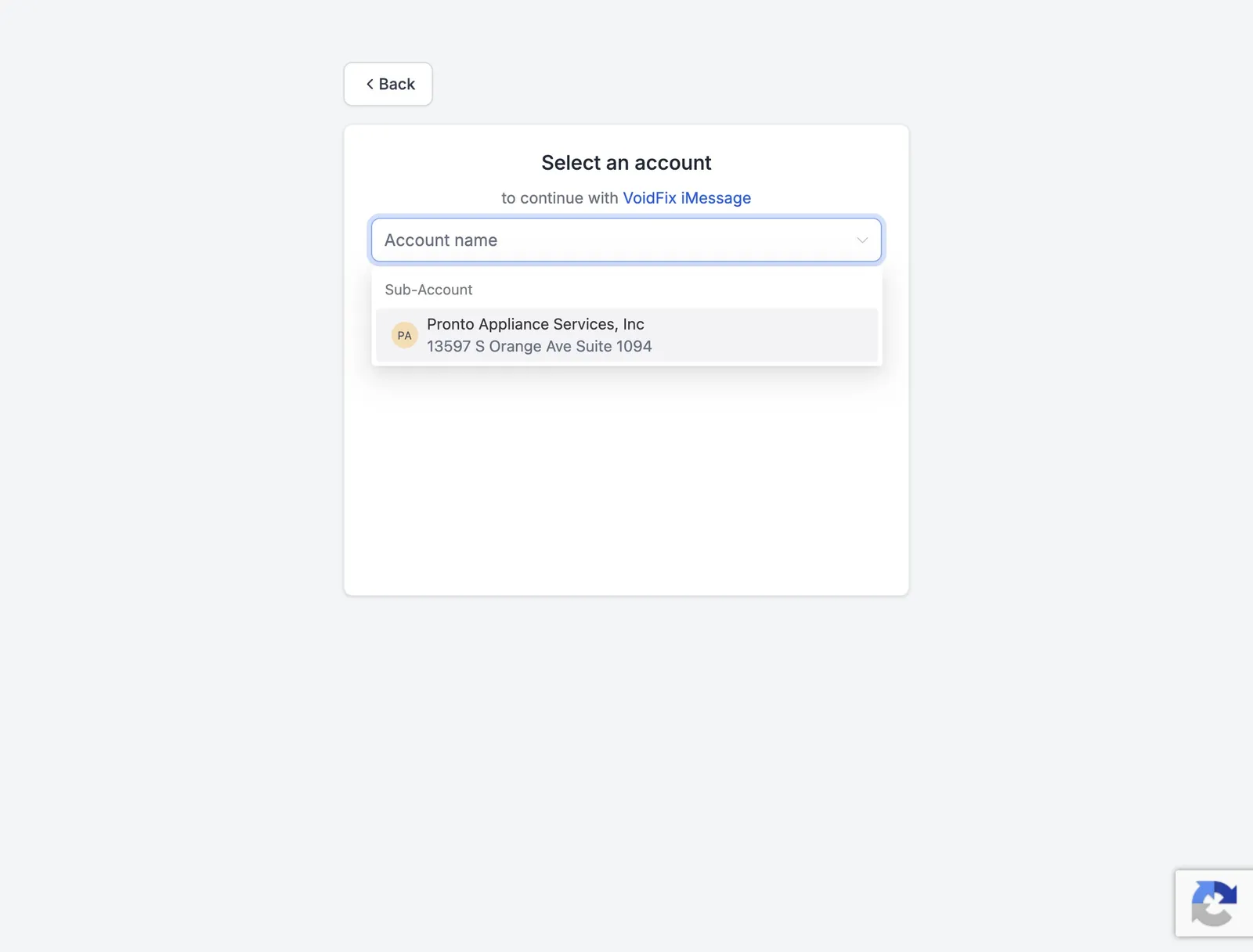
Select your sub-account
Open the Account name list and click the sub-account you want to send iMessages from.
-
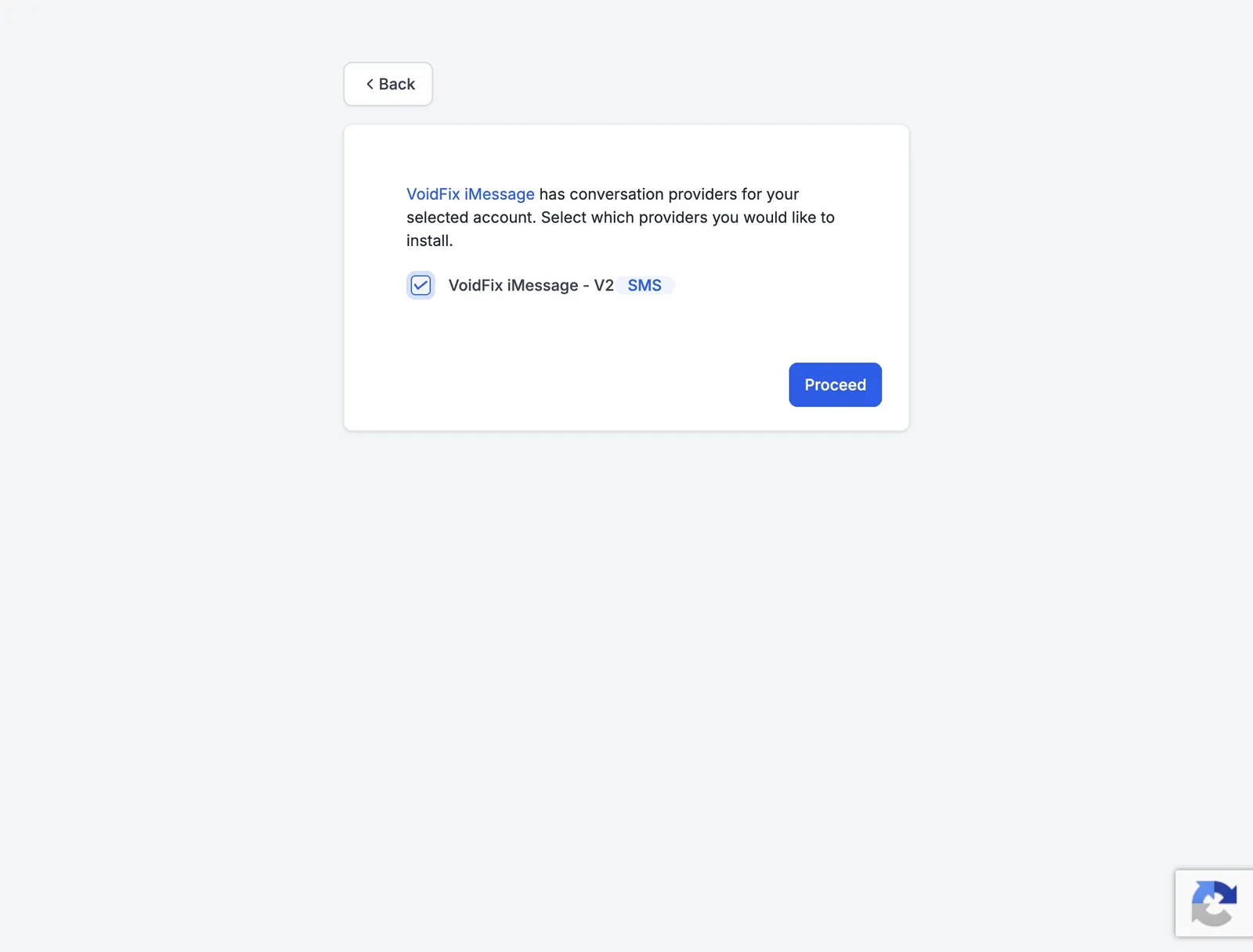
Tick VoidFix iMessage - V2 and click Proceed
HighLevel asks which conversation providers to install. Tick VoidFix iMessage - V2, then click Proceed.
-
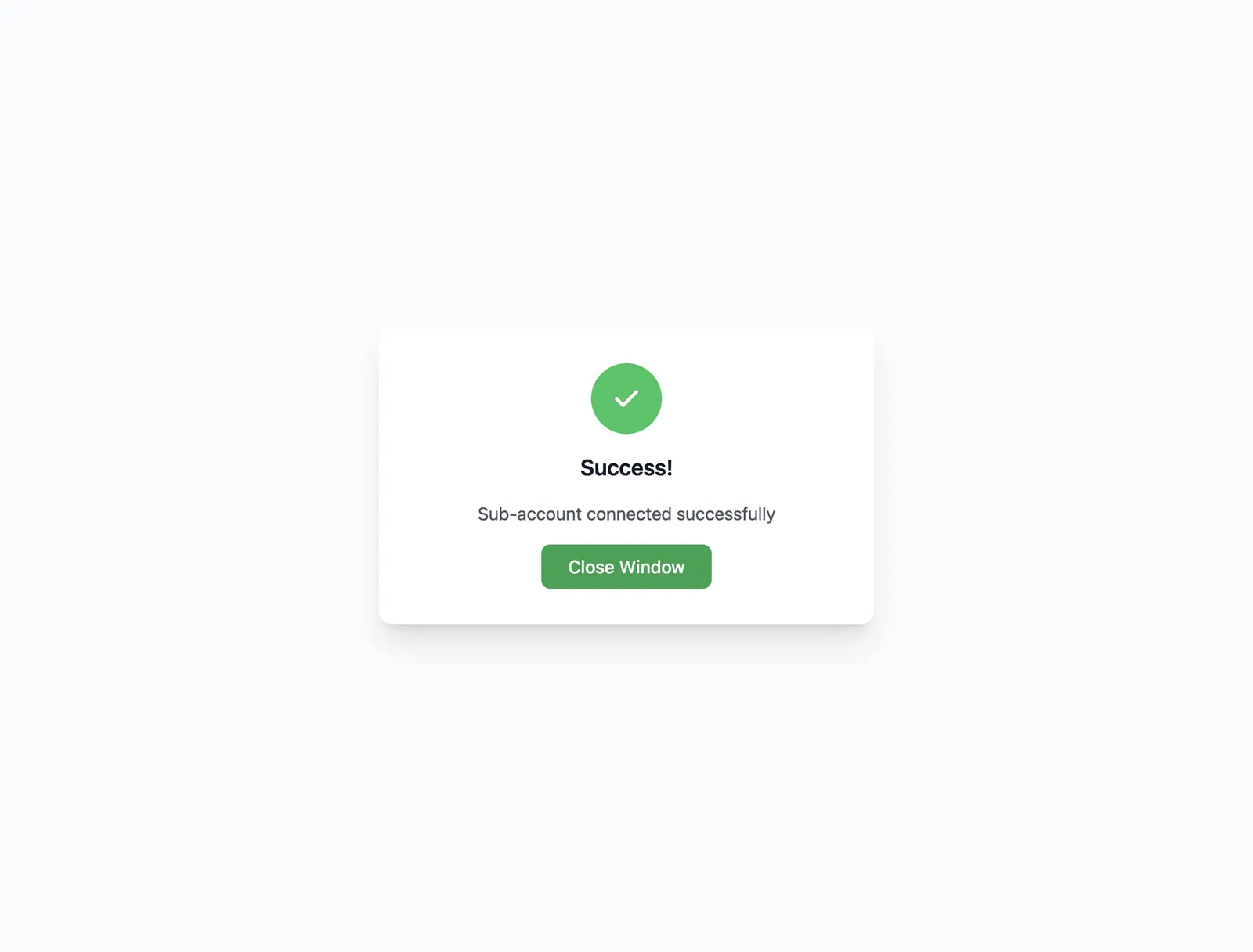
Click Close Window
You’ll see Success! Sub-account connected successfully. Click Close Window to go back to the VoidFix iMessage portal.
-
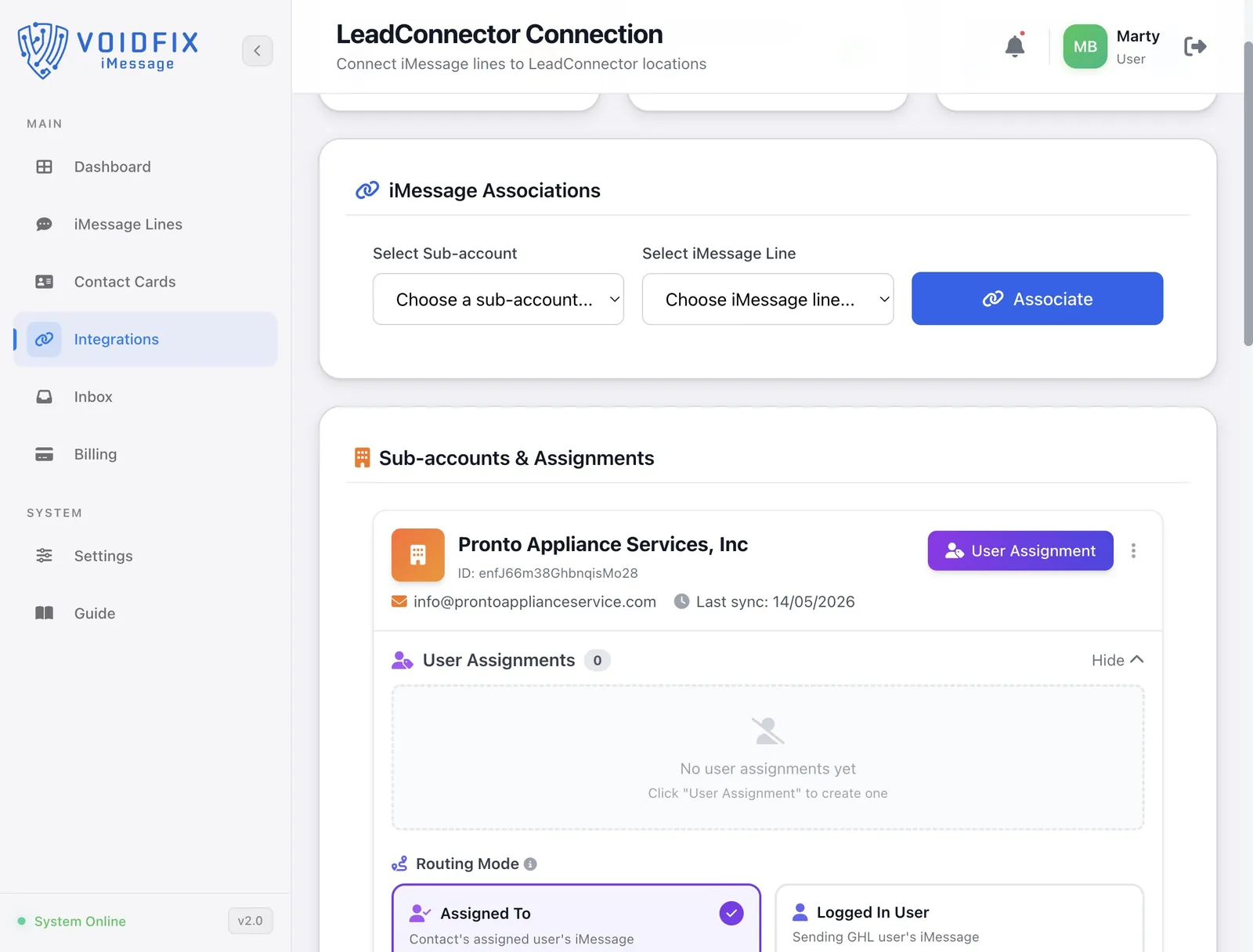
Refresh the page and find your sub-account
Refresh the Integrations page (Cmd + R on Mac, Ctrl + R on Windows). Your sub-account now appears under Sub-accounts & Assignments. Click it to check the name, location ID and email are the ones you expected.
-
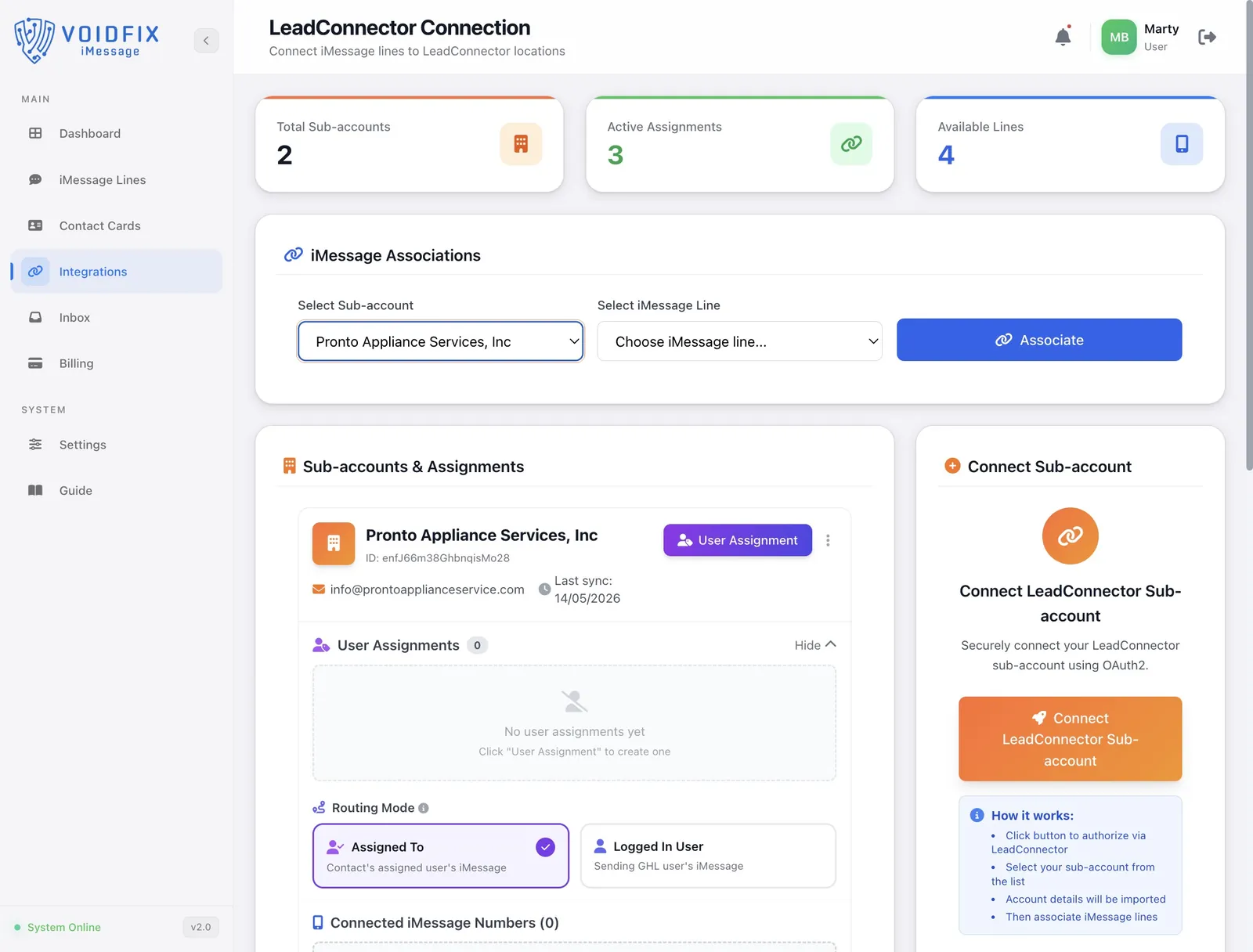
Choose the sub-account in iMessage Associations
At the top of the page, under iMessage Associations, open Select Sub-account and choose the sub-account you just connected.
-
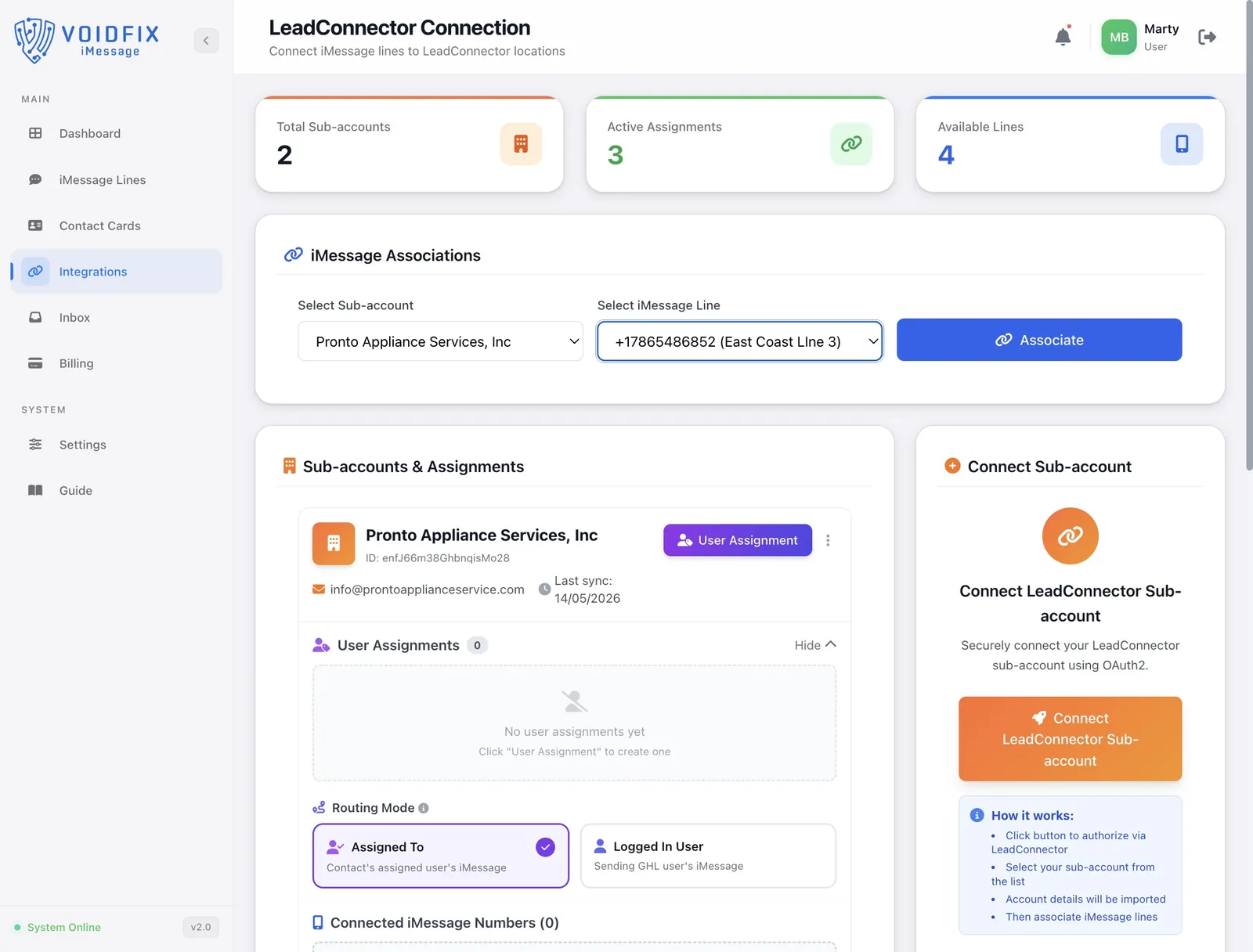
Choose the iMessage line
Open Select iMessage Line and pick the line this sub-account should send and receive iMessages on.
-
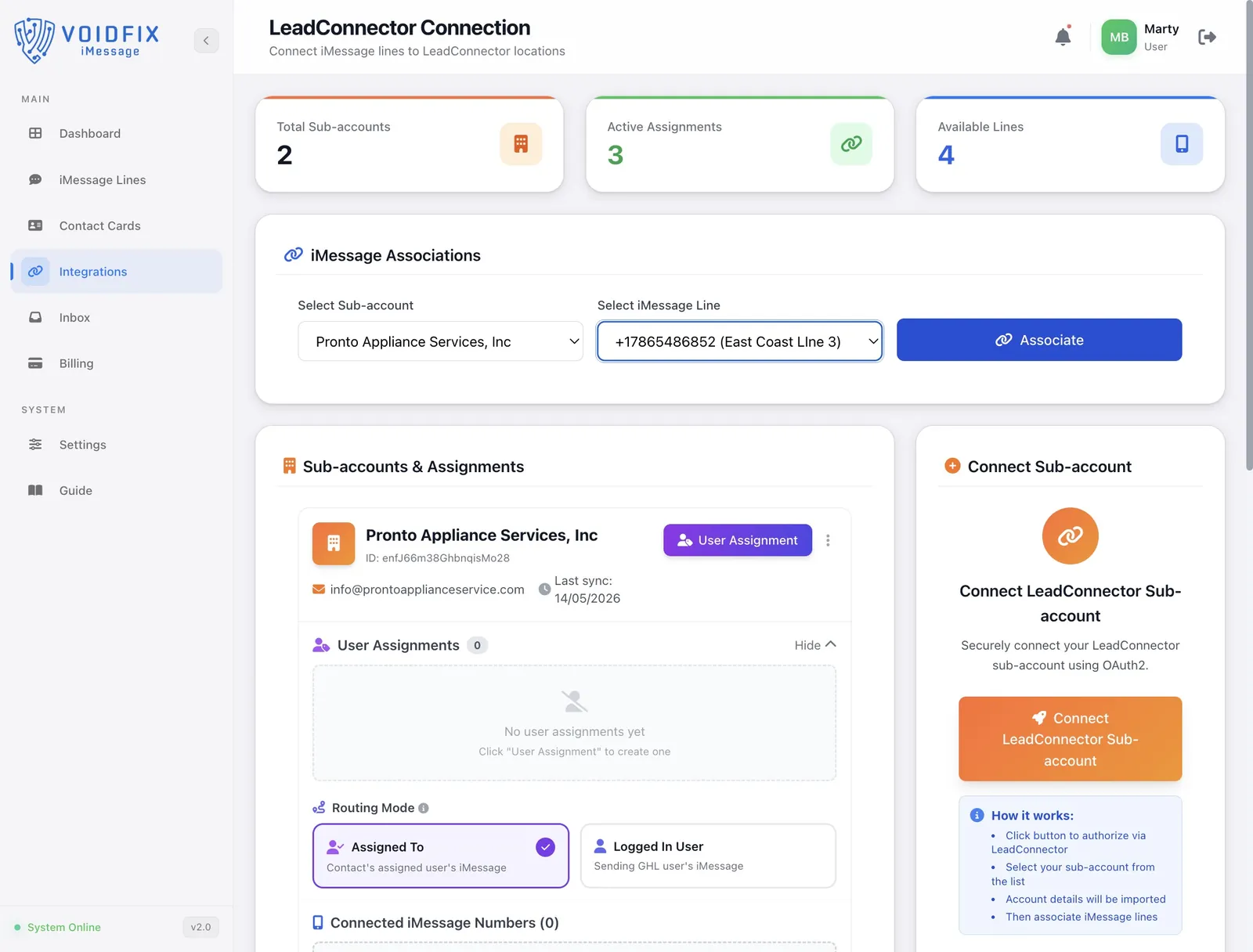
Click Associate
Click Associate to link the line to the sub-account.
-
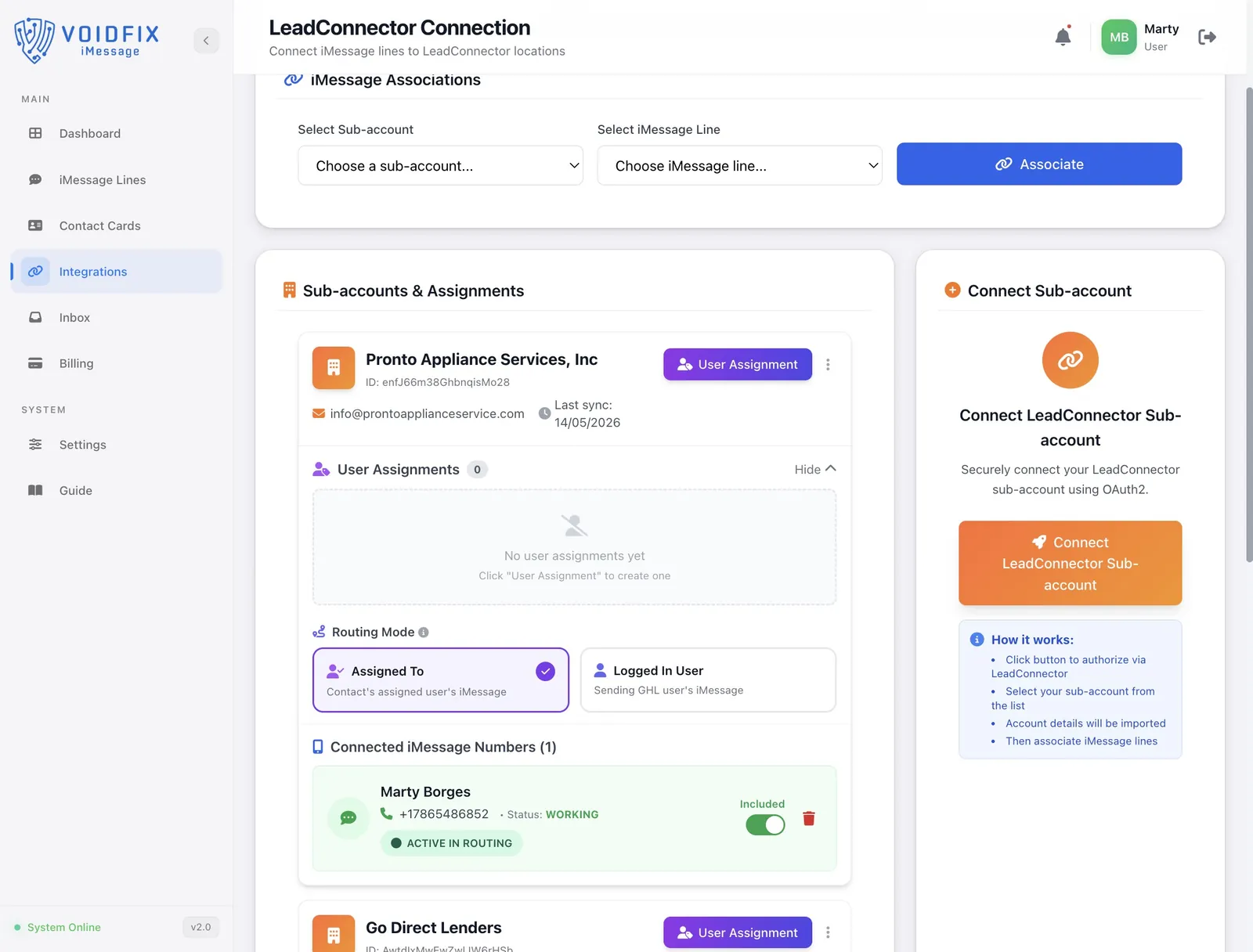
Check the line is active
Under the sub-account, Connected iMessage Numbers now lists the line with status Working and an Active in routing badge. Leave the Included toggle on. Routing Mode sets which line a message goes out on: Assigned To uses the iMessage line of the contact’s assigned user, and Logged In User uses the line of the GHL user who sends it.
Part 2: Set VoidFix iMessage as the provider in GoHighLevel
-
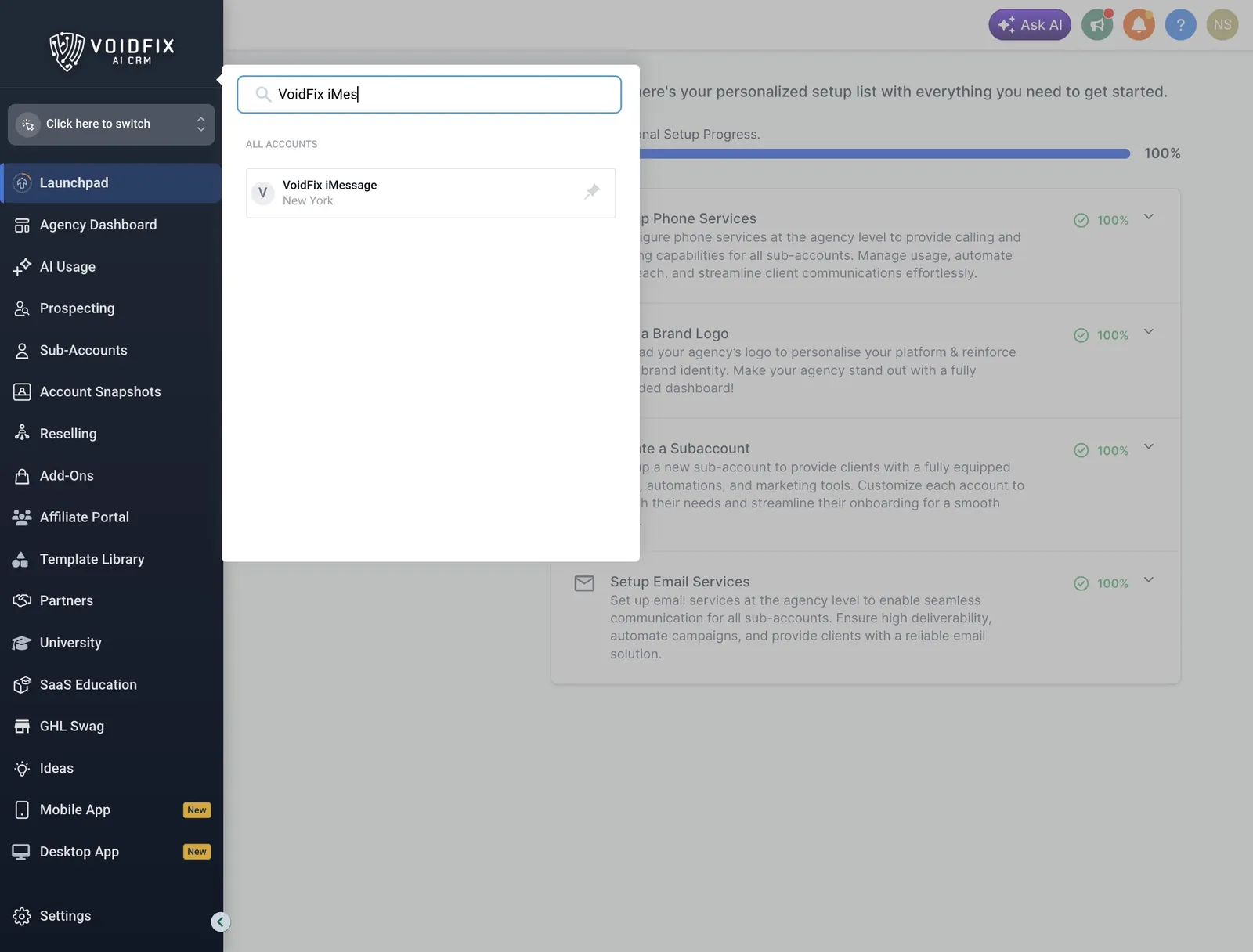
Open the sub-account in GoHighLevel
Go to https://app.gohighlevel.com (or your white-label domain). Click the account switcher at the top of the left menu, search for your sub-account and click it.
-
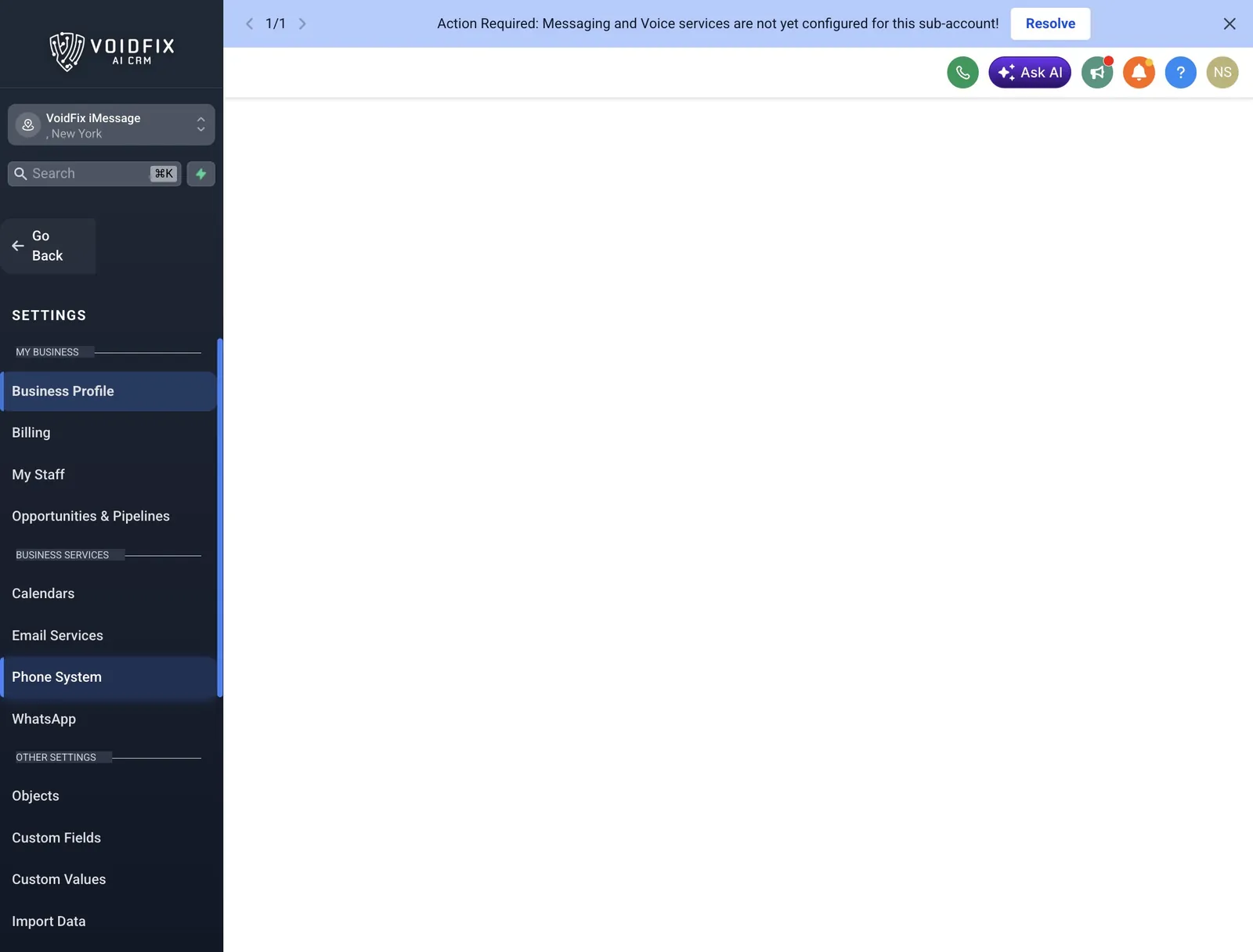
Go to Settings, then Phone System
In the sub-account, click Settings at the bottom of the left menu, then click Phone System.
-
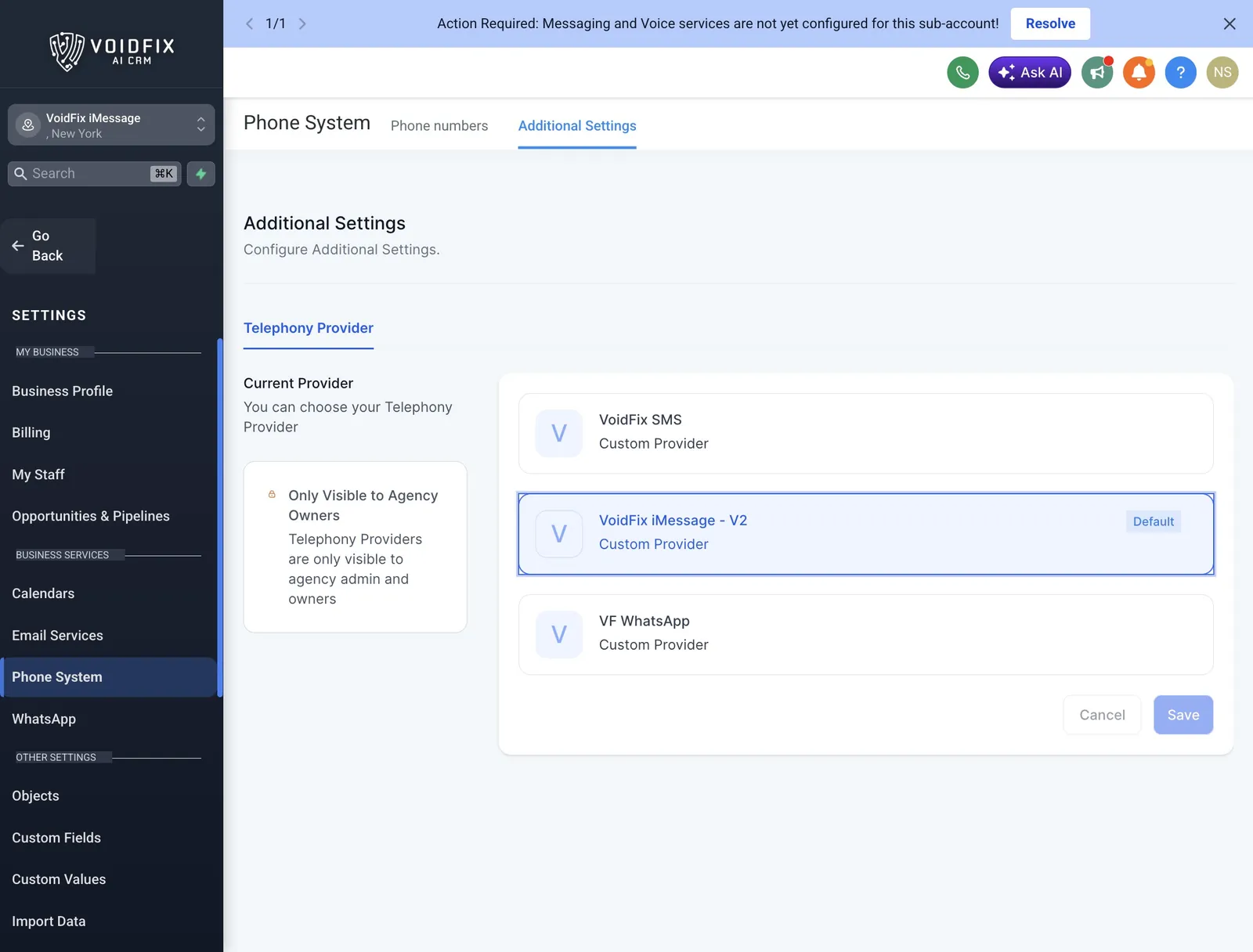
Choose VoidFix iMessage - V2 as the telephony provider
Open the Additional Settings tab. Under Telephony Provider, click VoidFix iMessage - V2 (listed as a Custom Provider).
-
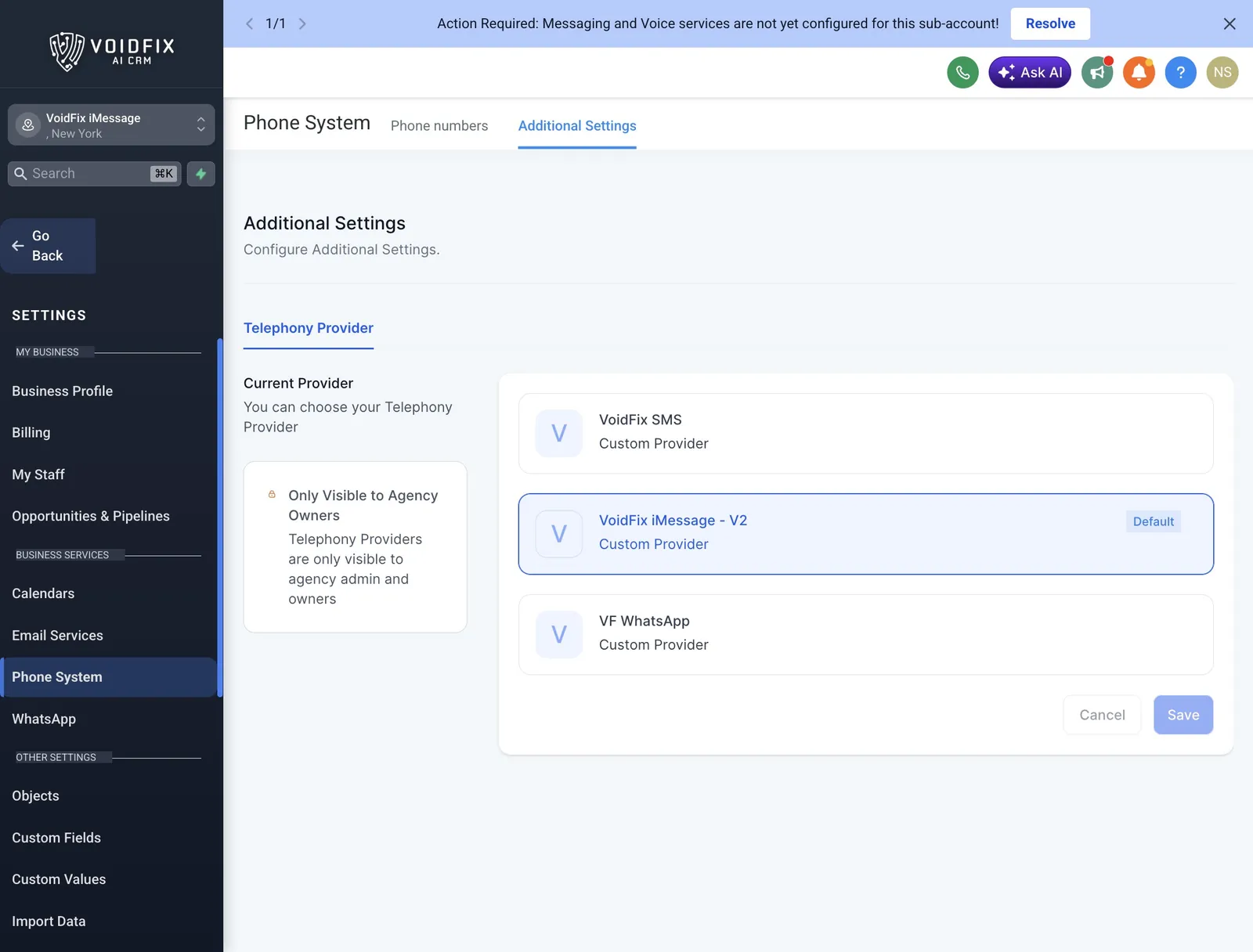
Click Save
Click Save. VoidFix iMessage - V2 is now the sub-account’s default provider. If it already shows a Default badge, it’s set and Save stays greyed out. Click Go Back to leave Settings.
-
Send a test message from Conversations
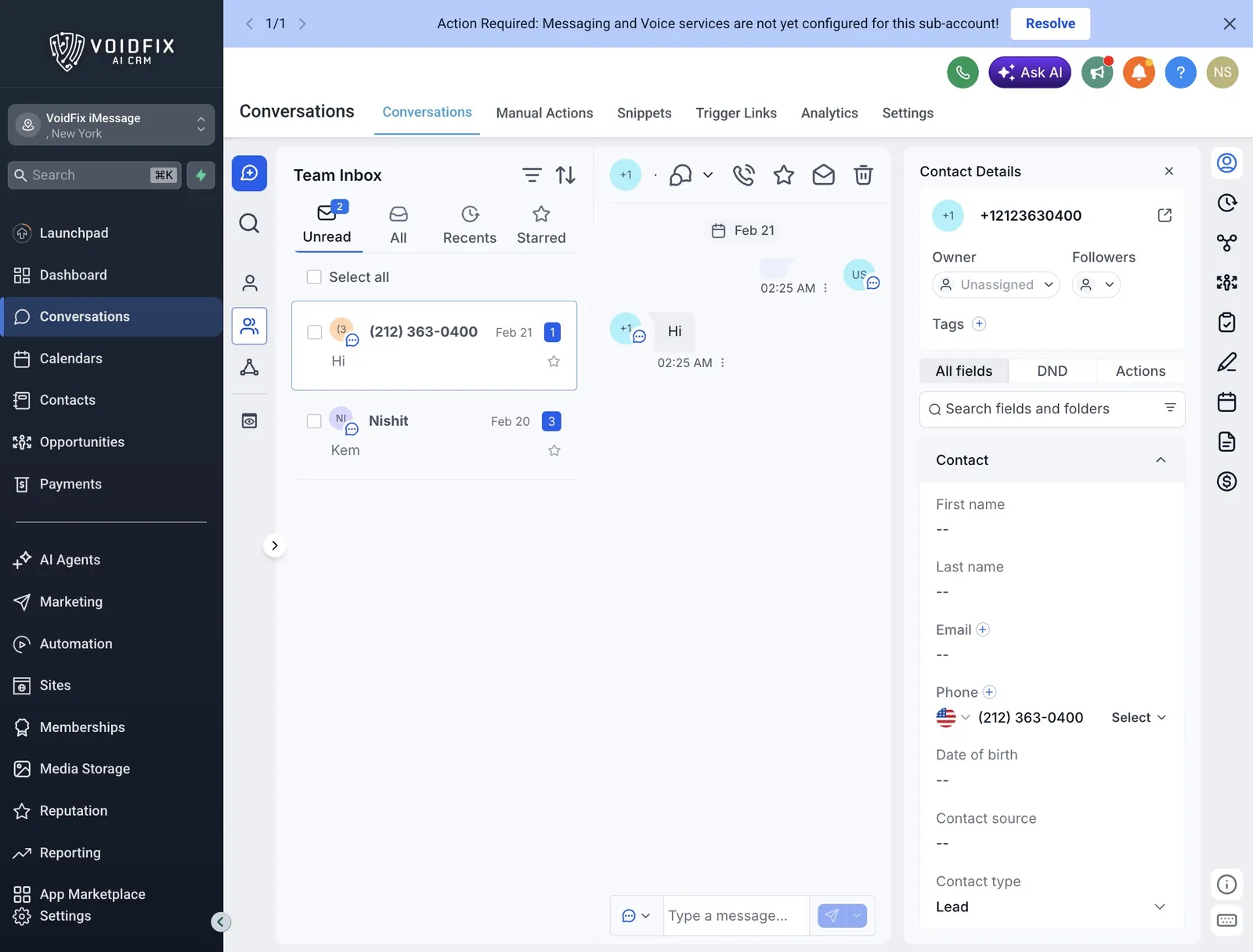
Click Conversations in the left menu, open a contact and send a test message. The reply shows up in the same conversation.
Sending to someone without iMessage? The VoidFix iMessage app adds an iMessage availability check to GoHighLevel, so your GHL workflows can check whether a contact uses iMessage before you message them.
Related guides and pages
- iMessage for GoHighLevel: features, limits and FAQ
- iMessage plans and pricing: from $99/month per line
- GoHighLevel SMS integration guide
- GoHighLevel WhatsApp integration guide
- iMessage API documentation: send iMessages from your own code
Get help with your setup
If a step doesn’t work as described, message us on WhatsApp at +61 2 3820 3010 or email support@voidfix.com. Support is available 24/7. You can also book a setup call and we’ll go through it with you.